Docs

Build Your Game's Home Base

Everything you need to create a landing page, set up a press kit, publish news, and go live with your game.

Try Editor

Getting Started

Overview

Gamebase is the home base for indie game developers. Import your game from Steam and build exactly the site you need. Every page below is optional. Enable a landing page, a press kit, news, custom pages, or any combination. Use one feature or all of them.

Landing Pages

Auto-generated from your Steam store page. Customize sections, colors, fonts, and layout.

Steam Sync

Import your game data directly from Steam. Your page stays in sync as your store page changes.

Press Kit

A dedicated press page with downloadable assets: logos, screenshots, and a fact sheet.

News & Posts

Publish updates and devlogs with a rich text editor directly on your game's site.

Custom Pages

Create additional content pages like an FAQ, credits, or privacy policy — or set up redirects.

Analytics

Track page views, top referrers, popular pages, and visitor geography after you go live.
Early Access

Gamebase is currently in early access. Anyone can sign up for free and start building right away. No waitlist, no invitation required.

Quick Start Guide

Once you have access, here's how to get your game's website live.

1

Sign up for free

Create your account on the sign-up page. See for details.

2

Sign in and create a studio

Sign in with your Google account and create a studio. Your studio is your developer identity — it appears on your published pages and holds all your games.

3

Add your game

Paste your Steam App ID or Store URL and we'll import everything automatically. See .

4

Configure your settings

Set up your website title, store links, SEO settings, and favicon. See .

5

Design your website

Use the page editor to add sections, pick colors and fonts, and drag in your assets. See .

6

Add your content

Enable your , write , and create any you need.

7

Verify ownership

Prove you own the game so you can publish. See .

8

Publish your site

Hit publish and your site goes live at yourgame.gamebase.gg. See .

Adding Your Game

Importing from Steam

Paste your Steam Store URL or App ID and we'll automatically pull in your game data. Here's what gets imported:

  • Game title and description
  • Developer and publisher names
  • Header image, capsule art, and background
  • All screenshots
  • Release date and pricing
  • Genres, categories, and tags
  • System requirements (Windows, Mac, Linux)
  • Supported languages

Steam URL Format

We accept any Steam Store URL format:

https://store.steampowered.com/app/123456/Your_Game/

Staying in Sync

After the initial import, Gamebase periodically checks Steam for changes to your store page. If something updates (new screenshots, a description change), your assets are refreshed automatically. The sync frequency depends on your plan.

Game Settings

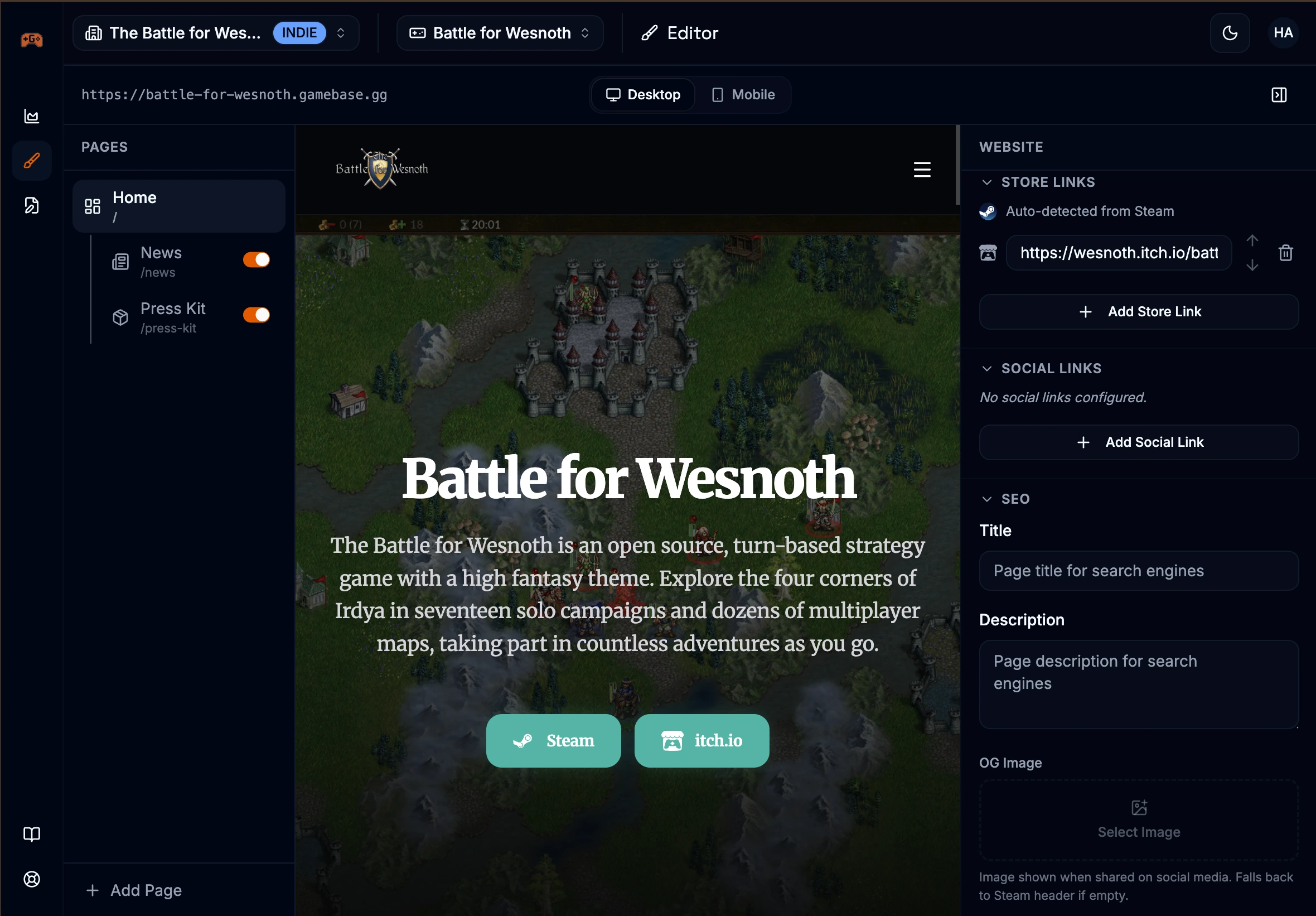
After importing, configure your game's settings from the Settings tab. These control how your site appears to visitors and in search results.

General

SettingDescription
Website TitleThe title shown in browser tabs and search results
FaviconThe small icon in browser tabs (SVG format, max 50 KB)
Store LinksLinks to Steam, Epic, GOG, Itch.io, Humble, Xbox, PlayStation, Switch, and more. The first store link becomes your main call-to-action button.
Social LinksLinks to your Twitter/X, Discord, YouTube, Twitch, Reddit, TikTok, Instagram, or Facebook. Shown as icons in your site footer.
Site URLYour site's slug, which determines your default URL at yourslug.gamebase.gg

SEO

SettingDescription
Meta DescriptionThe description shown in search engine results. Defaults to your Steam short description.
OG ImageThe image shown when your page is shared on social media. Recommended size: 1200x630px.
Steam Data as Defaults
Many settings are pre-filled from your Steam data after import. You can override any of them with custom values, or leave them linked to Steam so they update automatically when your store page changes.

Page Editor

Using the Editor

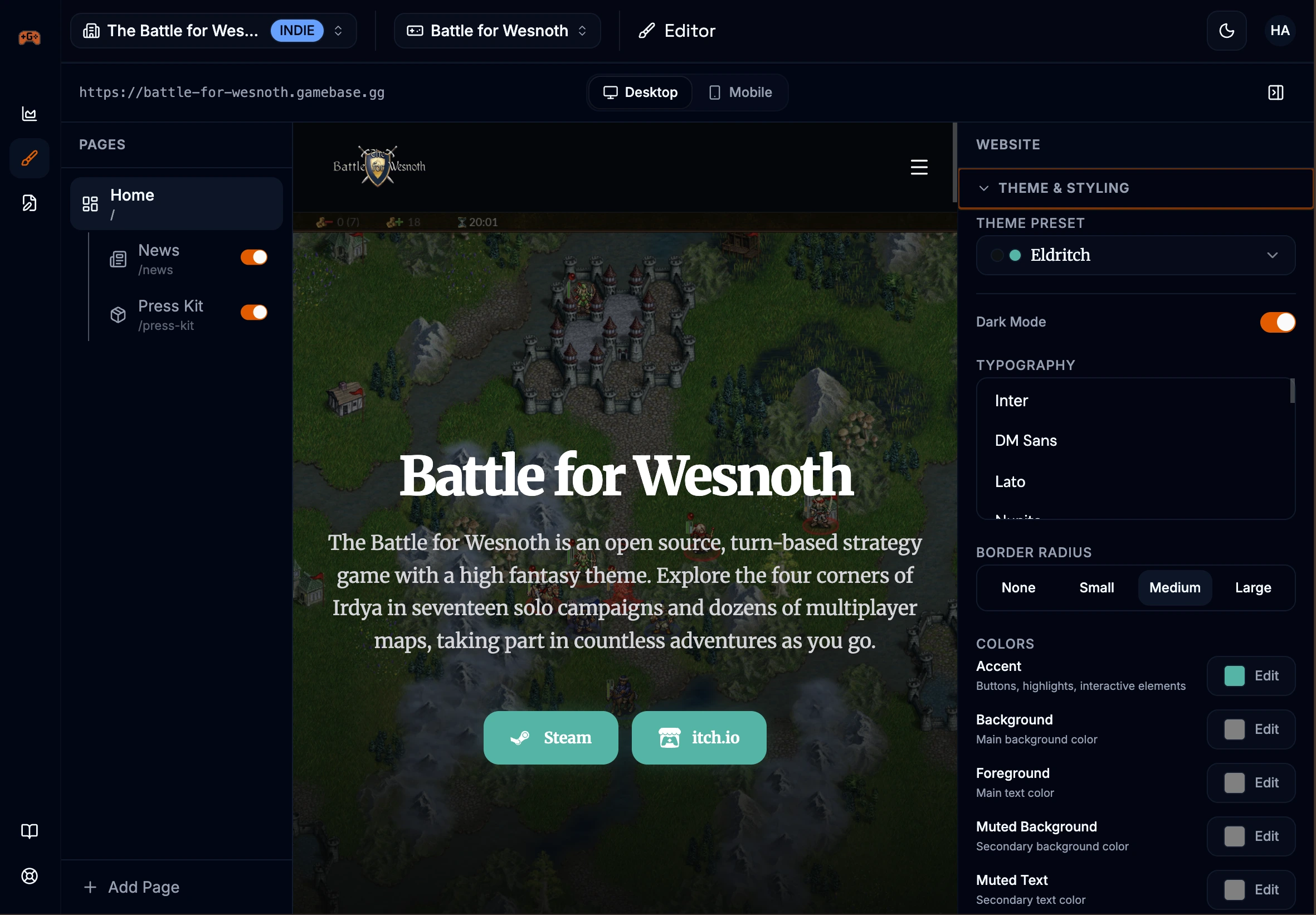
Your landing page is built from a vertical stack of sections. Add sections, reorder, and customize each one. A header and footer are always present on your page.

Full page editor view showing the vertical stack of sections with drag handles, add section button, and preview toggle

Add sections

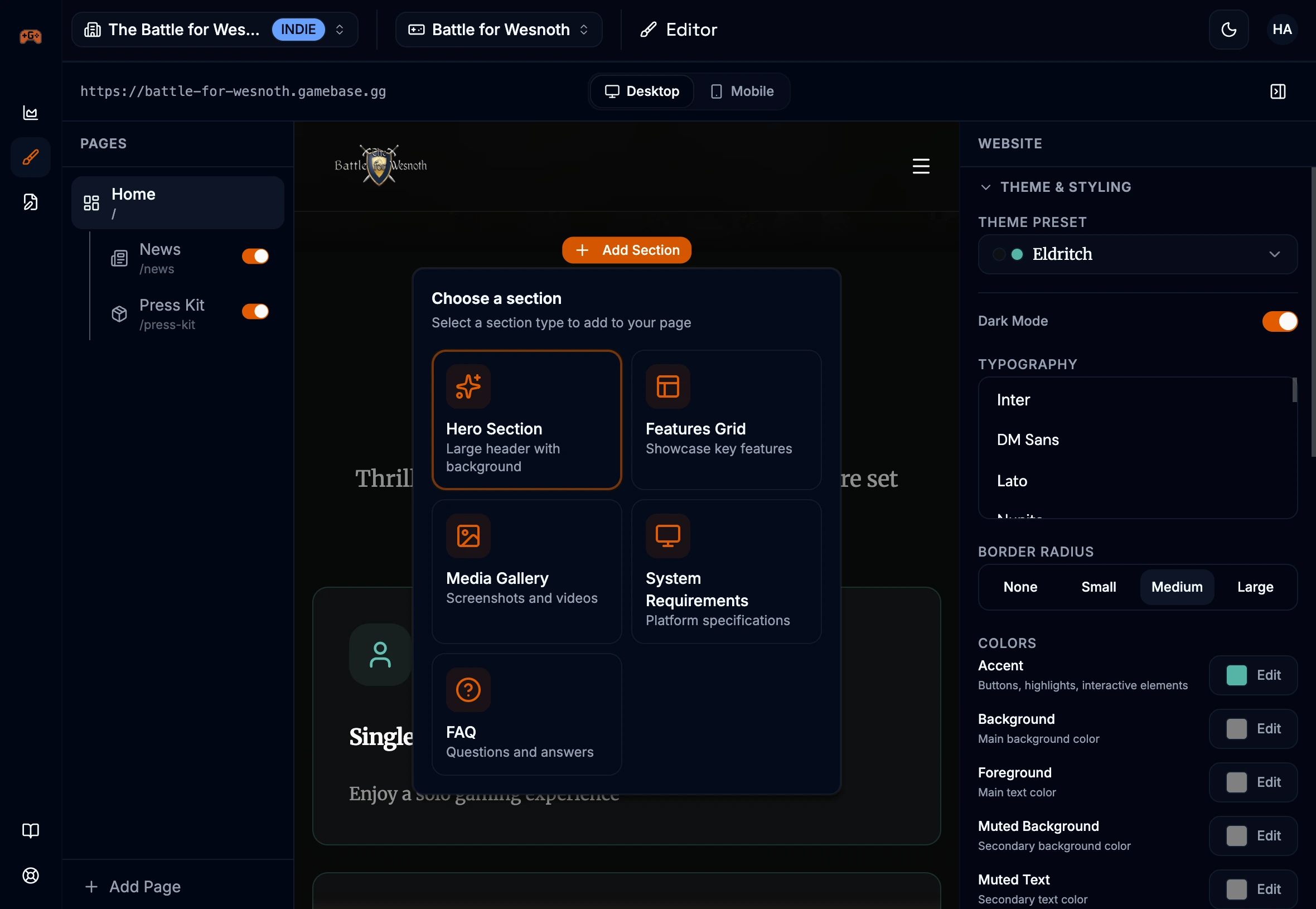
Click the add button to insert a new section. Choose from Hero, Features, Gallery, System Requirements, or FAQ.

Reorder sections

Drag sections by their handle to rearrange the order of your page.

Edit inline

Click any text on the page to edit it directly. Use the inspector panel on the right for section-specific settings.

Preview your page

Click the preview button to see how your page looks in a new tab before publishing.

Header & Footer

Every page includes a header and footer that you can customize. The header shows your game name (or a custom logo), navigation links, and your primary store link as a call-to-action button. The footer displays your game info, navigation, store links, social icons, and copyright.

Section Types

Each section type comes with layout variants you can switch between.

Hero

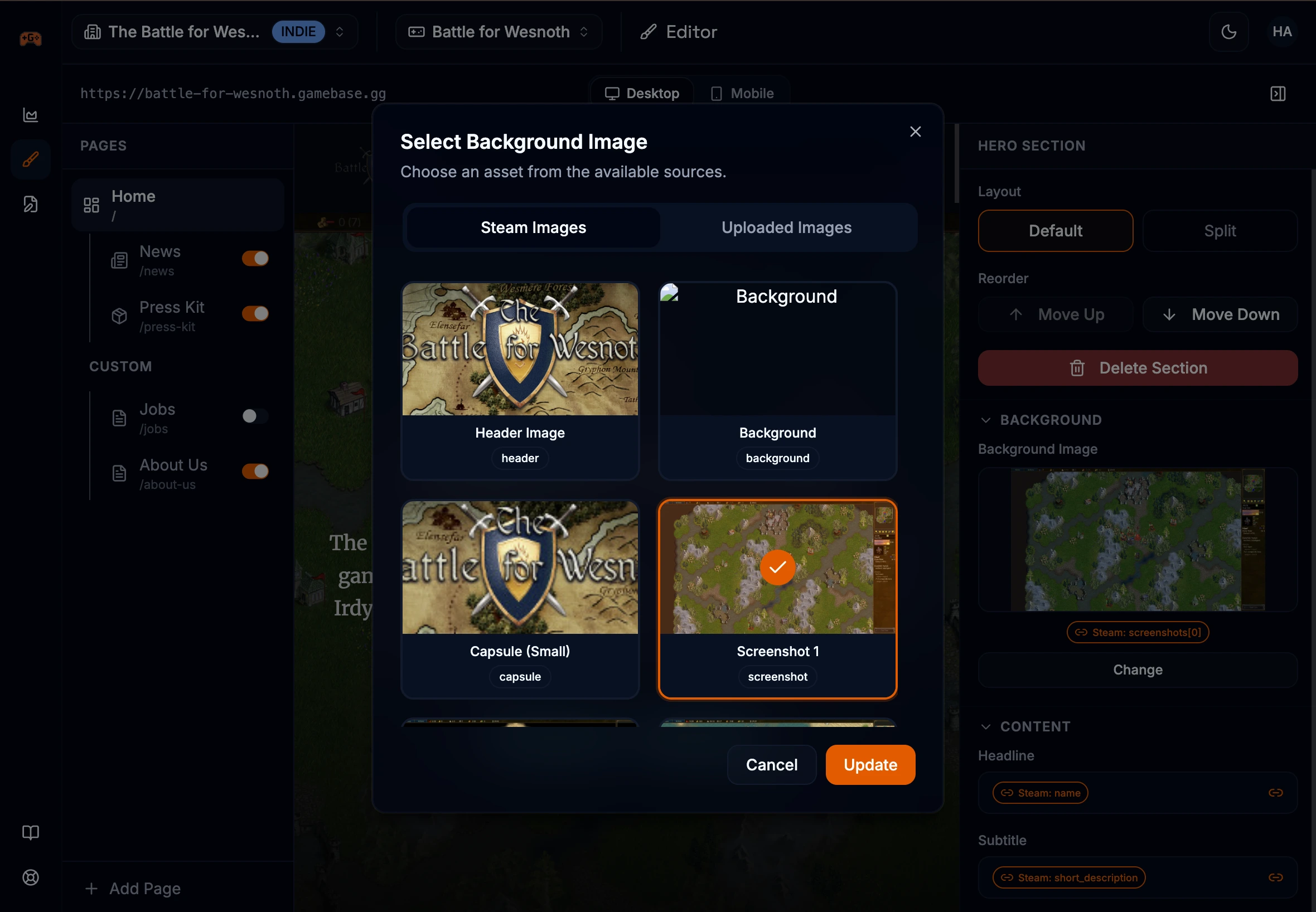
Large header with background image, title, subtitle, and call-to-action button. Supports platform indicators (Windows, Mac, Linux).

Variants: Default, Split

Features

Showcase your game's key features and mechanics with icons, titles, and descriptions.

Variants: Grid, Carousel

Gallery

Screenshot and video showcase. Supports YouTube and Vimeo embeds alongside images. Includes a fullscreen lightbox.

Variants: Mosaic, Carousel

System Requirements

PC, Mac, and Linux specs pulled from your Steam page. Shows minimum and recommended requirements.

Variants: Tabs, Columns

FAQ

Questions and answers about your game. Add as many items as you need.

Variants: Accordion, Cards

Add section menu showing all available section types with descriptions

Design & Theming

Make your page match your game's aesthetic with the design settings in the editor sidebar.

Accent Color

Pick a primary color for buttons, highlights, and interactive elements. Choose from 13 presets.

Font Family

Choose from a selection of fonts including Inter, Space Grotesk, Plus Jakarta Sans, Oswald, Playfair Display, and more.

Dark / Light Mode

Choose whether your page renders in dark or light mode for all visitors.

Border Radius

Adjust the roundness of cards, buttons, and other elements (none, small, medium, large).

Design panel showing accent color picker, font selector, dark/light mode toggle, and border radius options

Custom Pages

Creating Pages

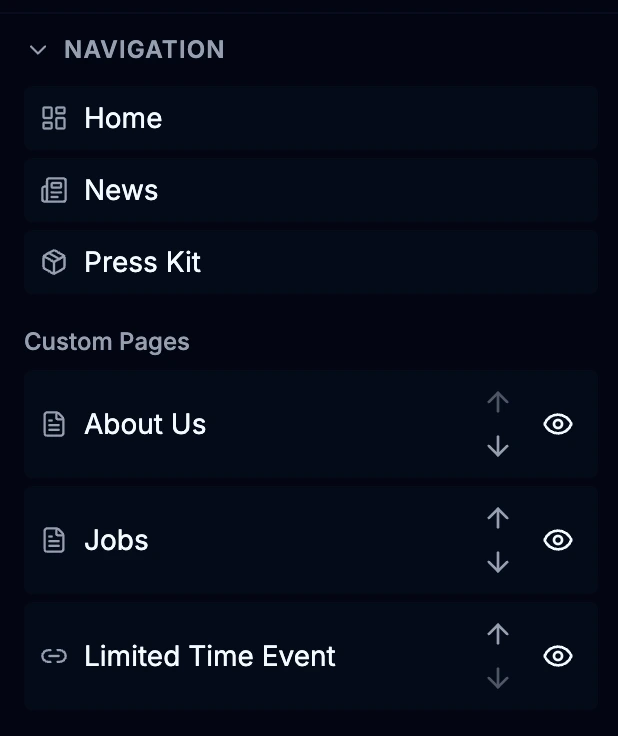
In addition to your landing page, press kit, and news, you can create custom pages for things like an FAQ, credits, privacy policy, or anything else your site needs.

Page types

Content Page

A full page with a rich text editor. Add formatted text, images, videos, headings, lists, code blocks, and more. Rendered with your site's theme.

Redirect

A navigation link that redirects visitors to an external URL. Useful for linking to your Discord server, wiki, or other external resources.

Creating a page

1

Open the editor and find the Sitemap panel in the sidebar

2

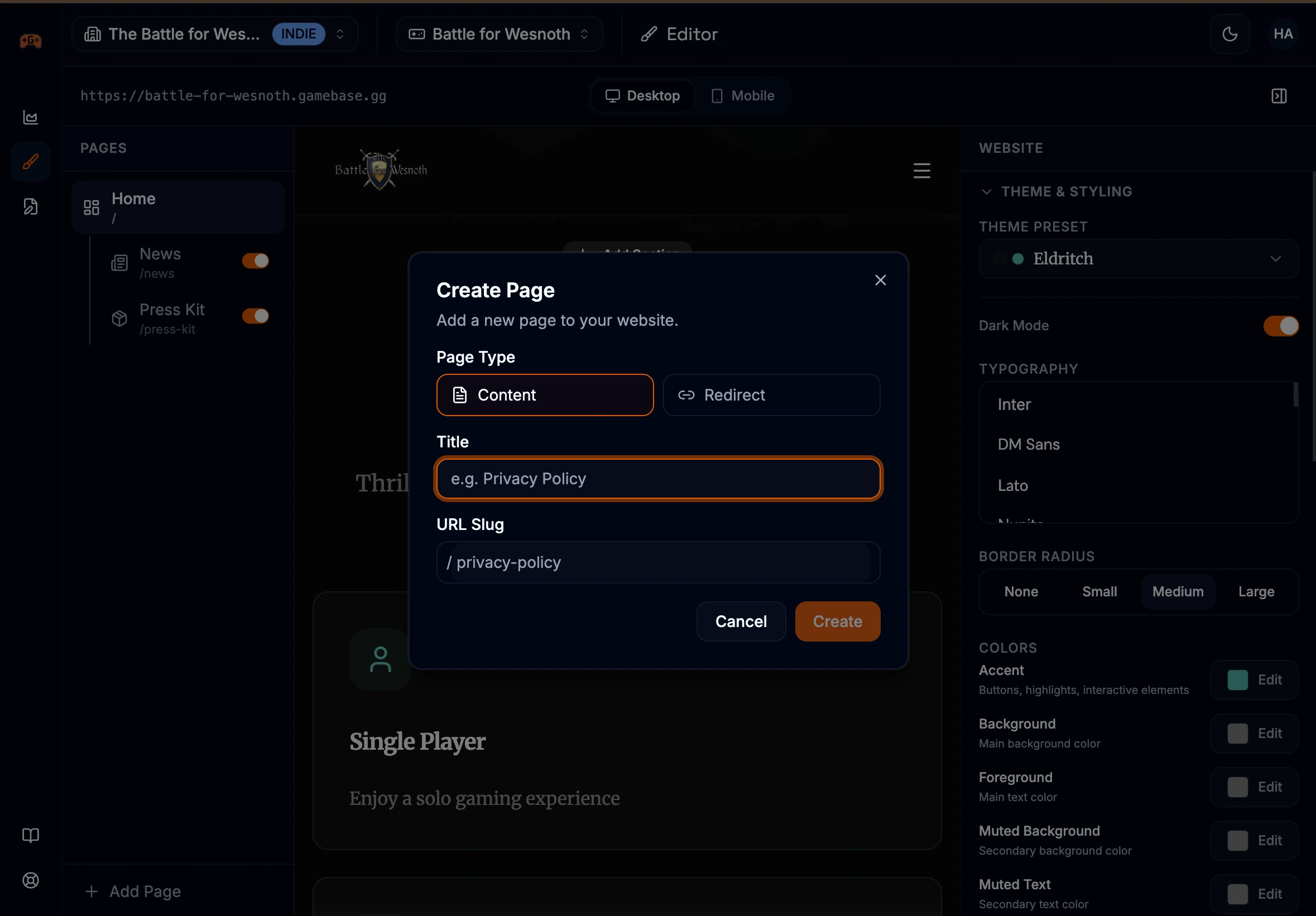
Click Add Page and choose Content or Redirect

3

Give it a title — a URL slug is generated automatically, or you can customize it

4

Write your content (for content pages) or enter the destination URL (for redirects)

5

Set the page to Published when it's ready to go live

Custom pages live at yoursite.gamebase.gg/your-page-slug. Each page also has its own SEO settings (meta title, description, and OG image).

Custom page editor showing the content editor, page title, slug field, and SEO settings

Assets & Media

Managing Assets

Gamebase manages two types of assets: images imported from Steam and images you upload yourself. Both can be used across your landing page, press kit, posts, and custom pages.

Steam-imported assets

When you import your game, all images from your Steam store page are automatically available — header image, capsule art, background image, and all screenshots. These stay in sync as your Steam page changes.

Uploading assets

You can also upload your own images. Use the asset picker (available anywhere you can add an image) to drag-and-drop or browse for files. Supported formats include JPEG, PNG, WebP, and GIF.

Asset TypeFormatNotes
ImagesJPEG, PNG, WebP, GIFUsed in galleries, hero backgrounds, features, press kit, posts
FaviconSVG onlyMax 50 KB. The icon shown in browser tabs.
OG ImageJPEG, PNG, WebPMax 1 MB. Recommended 1200x630px for social media previews.
Storage Limits
Each plan has its own asset count, file size, and total storage limits. You can see your current usage on the Billing page.
Asset picker showing Steam-imported images and uploaded assets with drag-and-drop upload area

Videos

You can embed YouTube and Vimeo videos in your gallery sections, press kit, and posts. Just paste the video URL and Gamebase handles the embed — including automatic thumbnail generation.

Gallery Sections

Add videos alongside screenshots in your gallery. Videos appear with a play button overlay and open in the lightbox.

Posts & Custom Pages

Embed videos inline in your content using the editor. Videos are displayed as responsive embeds.

Press Kit

Setting Up Your Press Kit

Give press and content creators easy access to your game's assets. Enable the press kit from the editor and it becomes a dedicated page on your site.

What's included

  • Game title, tagline, and description
  • Quick facts: release date, price, genres, platforms, and languages
  • Screenshot gallery
  • Video gallery (YouTube and Vimeo embeds)
  • Game logos and promotional art
  • Studio information and logos
  • Downloadable ZIP with all selected assets

Customizing the download

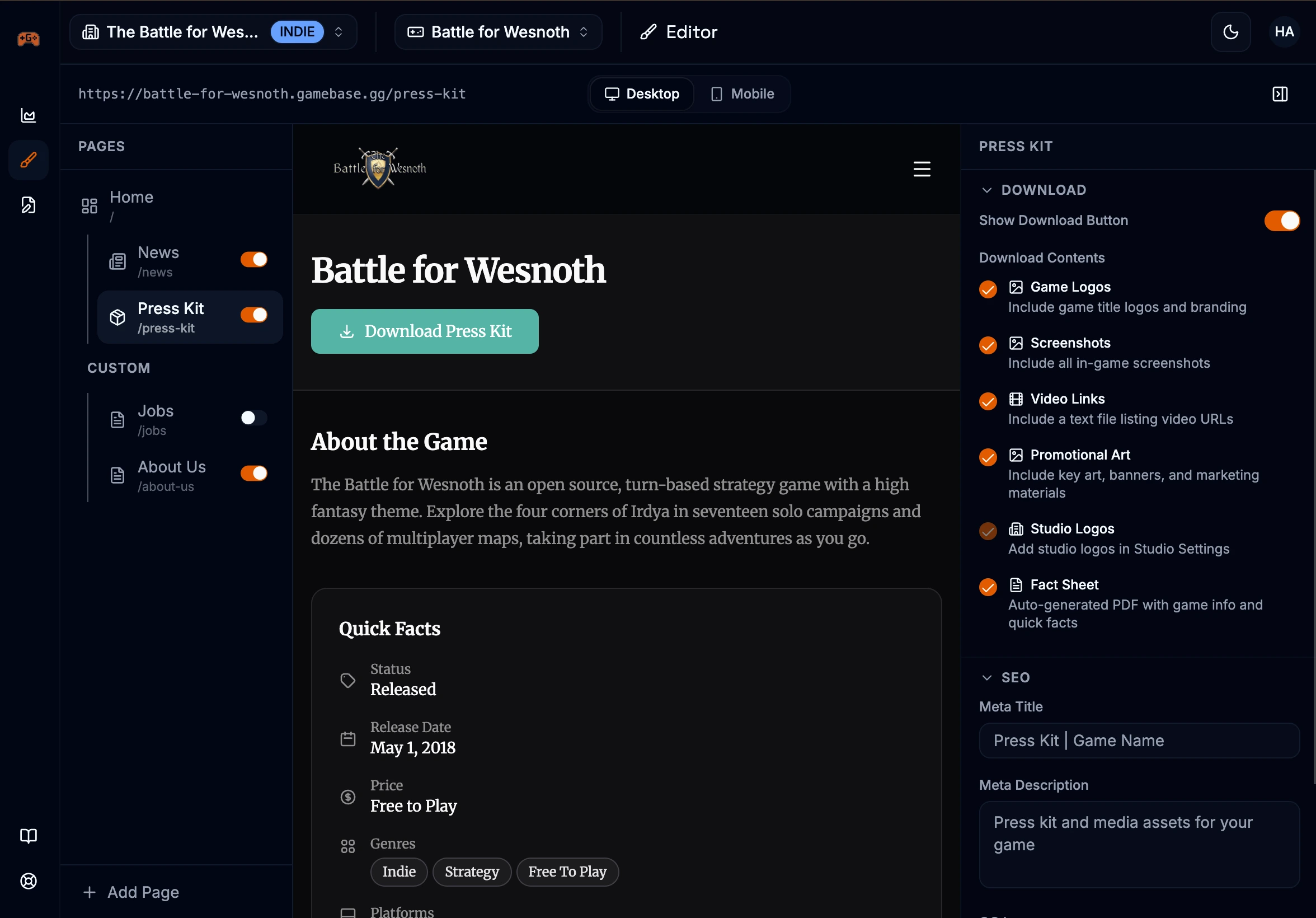
Choose exactly what goes into the downloadable ZIP that visitors can download from your press kit page:

OptionDescription
Game LogosYour game's logo files
ScreenshotsAll screenshots from your gallery
Video URLsA text file with links to your trailers
Promotional ArtKey art and promotional images
Studio LogosYour studio's logo files
Fact SheetAn auto-generated summary of your game's key information

Layout variants

The press kit comes in two layout variants: Default and Magazine. Switch between them from the editor.

Game info fields

Customize the information displayed on your press kit page. Most fields are pre-filled from your Steam data but can be overridden:

  • Title and tagline
  • Description
  • Release date and release status (released, early access, coming soon, or in development)
  • Price
  • Genres, platforms, languages, and features
Press kit editor showing asset galleries, game info fields, and download settings

News & Posts

Managing Posts

Publish devlogs, announcements, and updates directly on your game's site. Enable the news page from the editor, then manage your posts from the Posts tab.

Creating a post

1

Click New Post from the Posts tab

2

Add a title and write your content using the rich text editor

3

Optionally add a header image and configure SEO settings

4

Click Publish when you're ready for it to appear on your site

Post visibility

StatusWho can see it
DraftOnly you in the dashboard. Visible while you're still writing.
PublishedEveryone, once your site is live. The publish date is preserved if you unpublish and republish later.
ArchivedHidden from both your site and the dashboard post list. Use this to remove a post without deleting it.

Each post gets its own URL at yoursite.gamebase.gg/news/post-slug. The slug is auto-generated from your title but can be customized while the post is in draft.

Site Must Be Published
Posts only appear on your live site. If your site isn't published yet, you can still write and save drafts, but they won't be visible to anyone.

Post Editor

The post editor gives you a rich text editing experience for writing devlogs, announcements, patch notes, and more.

Formatting options

Text Formatting

Bold, italic, underline, strikethrough, inline code, and text alignment (left, center, right).

Structure

Headings (H1, H2, H3), paragraphs, blockquotes, ordered and unordered lists, and code blocks.

Media

Insert images from your asset library and embed YouTube or Vimeo videos. Add optional captions to both.

Links

Add hyperlinks to any text. Supports web URLs and email addresses.

Slash Commands

Type / anywhere in the editor to open a command menu for quickly inserting images and videos.

Post SEO

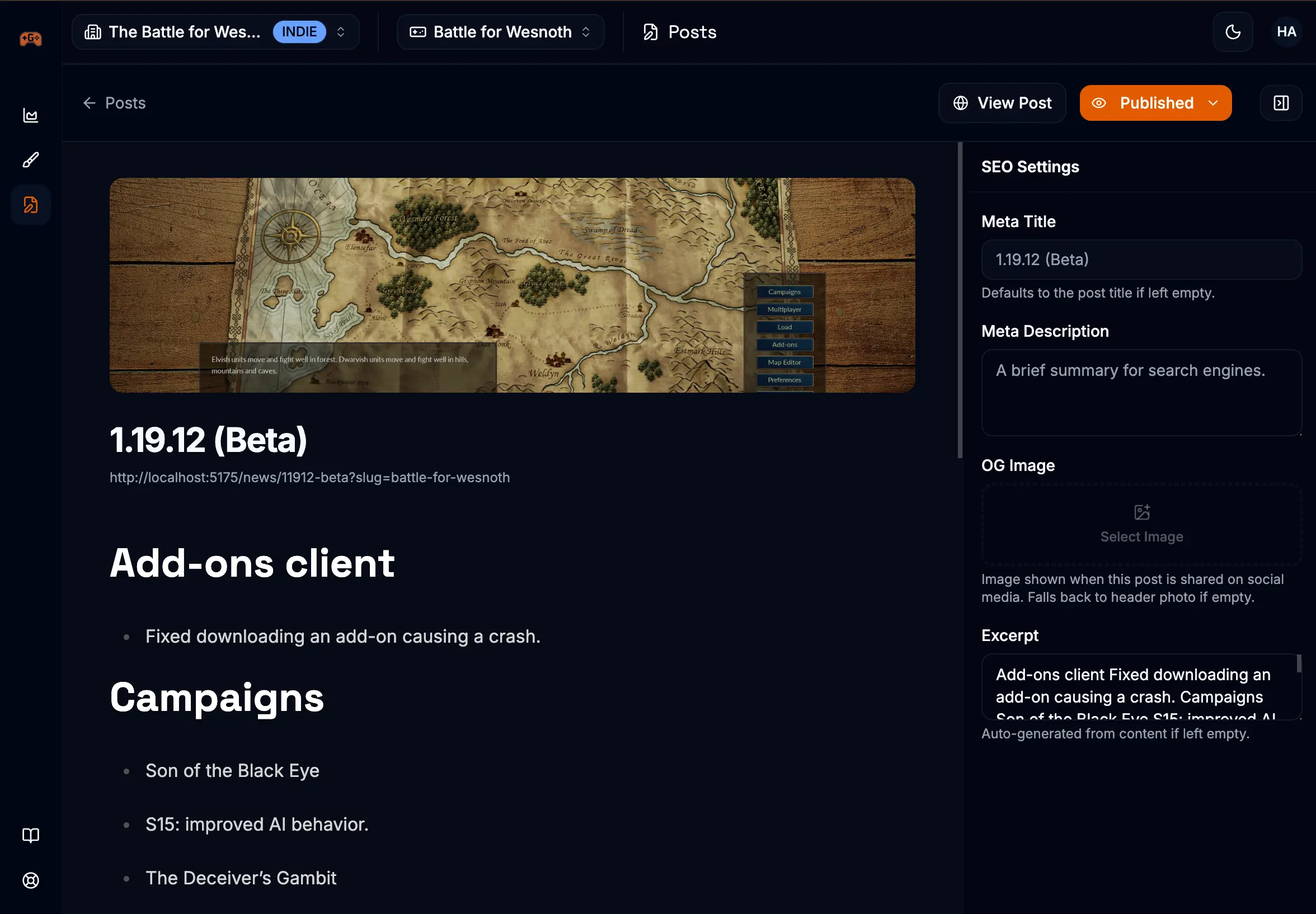
Each post has optional SEO settings you can configure in the side panel: a custom meta title, meta description, and OG image for social media sharing. If left empty, these fall back to your post title, excerpt, and header image.

Post editor showing rich text toolbar, header image, title field, and content area with formatting options

Going Live

Verification

Before you can publish, you need to verify that you own the game. This protects players from impersonation. Click the Verification status on your game dashboard to get started.

How it works

1

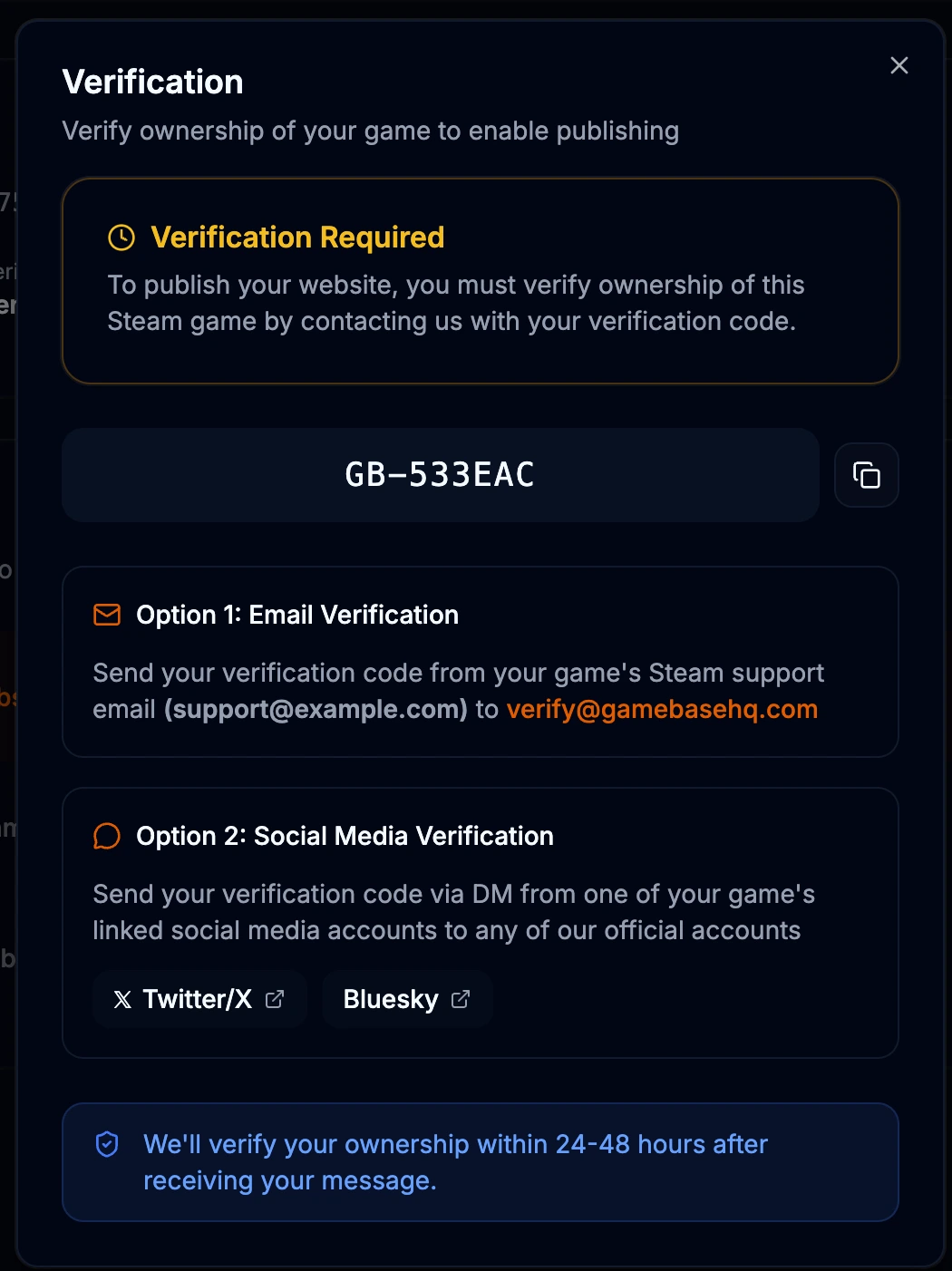
Copy the unique verification code from the Verification dialog on your game dashboard

2

Send it to us using one of the methods below

3

We'll verify and mark your game within 24-48 hours

Email Verification

Send the verification code from the email address listed as your game's support email on Steam. This is the fastest way to verify.

Social Media Verification

DM us the verification code from your game's official Twitter/X or Bluesky account.

Automatic Verification
If your Steam support email domain matches the email you signed up with, your game may be verified automatically after import.
Verification dialog showing the unique verification code with copy button and verification method options

Publishing Your Site

Once your game is verified and you've designed your website, you can publish from the game dashboard with a single click.

Requirements to publish

  • Your game must be verified
  • Your home page must have at least one section designed

When you publish

  • Your site goes live at yourslug.gamebase.gg
  • Your landing page, press kit, news, and custom pages become visible
  • Analytics start tracking page views, referrers, and visitor geography
  • You can unpublish at any time to take the site offline

Preview Before Publishing

You can preview your site at any time using the preview button in the editor. No verification or publishing needed to see how your page looks.

Custom Domains

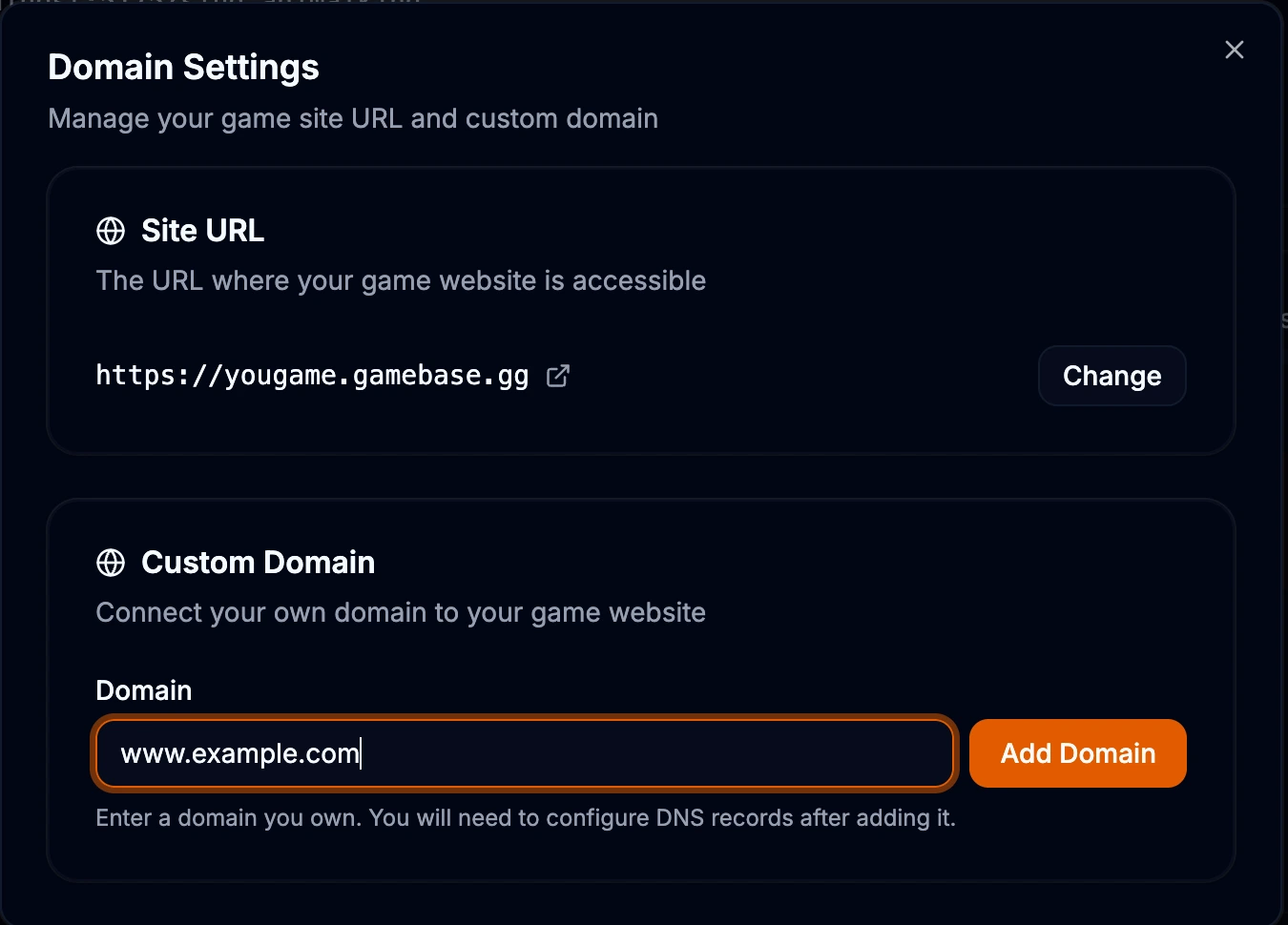
On paid plans, you can connect your own domain (like mygame.com or play.mygame.com) to your Gamebase site.

Setting up a domain

1

Go to your game's Settings and open the Domain tab

2

Enter your domain name and click Add Domain

3

Add the DNS records shown in the dashboard to your domain registrar. You'll need to add a CNAME record and may need one or two TXT records for verification.

4

Click Check Status to verify your DNS records are set up correctly. Once verified, your domain goes active with a free SSL certificate.

DNS Propagation

DNS changes can take up to 24-48 hours to propagate, though most go through within minutes. You can keep checking the status from your dashboard.

Your default yourslug.gamebase.gg URL continues to work alongside your custom domain. You can remove a custom domain at any time from the same settings page.

Custom domain settings showing domain input, DNS records table with CNAME and TXT records, and status indicator

Analytics

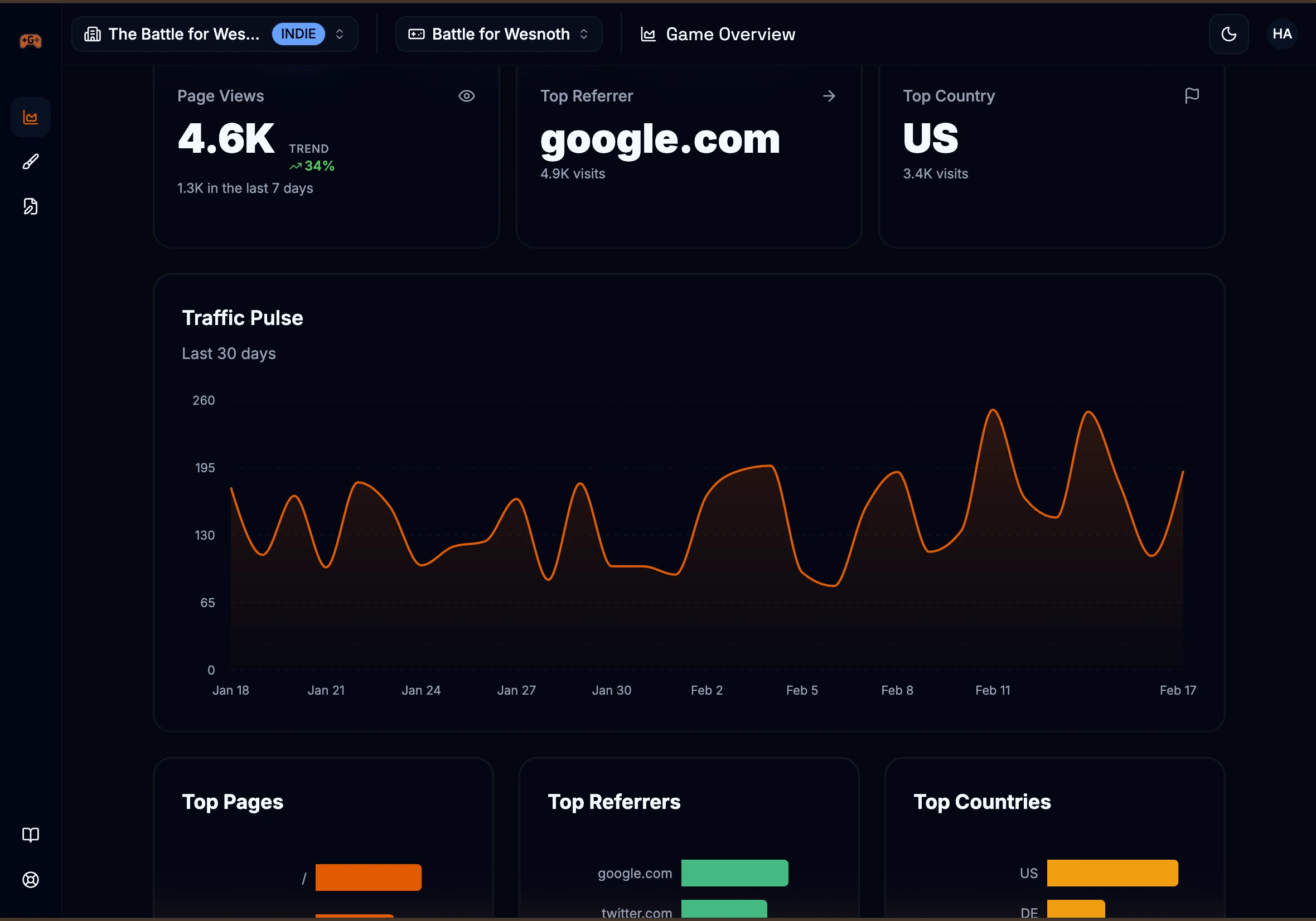
Once your site is live, Gamebase tracks how visitors interact with it. View your analytics from the Analytics tab on your game dashboard.

What's tracked

Page Views

Total views over the last 30 days with a daily traffic chart and 7-day trend comparison.

Top Referrers

See which websites and platforms are driving traffic to your site.

Top Pages

See which pages visitors view the most — landing page, press kit, news posts, etc.

Visitor Geography

A breakdown of your visitors by country, helping you understand your game's global reach.

Detailed Breakdown
Top referrers, top pages, and country breakdowns are available on paid plans. All plans include the page views chart and trend comparison.
Analytics dashboard showing a 30-day traffic chart, page view count with trend, top referrers, top pages, and visitor geography

Ready to build your home base?

Import your game from Steam and get a full website in minutes — landing page, press kit, news, analytics, and more.